

File Transfer Protocol (FTP) is a client-server communication protocol using the Transmission Control Protocol (TCP) based on the TCP/IP model (short: TCP connection), enabling bidirectional file transfer between the FTP server and the FTP client.
An FTP server is software installed on a server that runs in the background (as a service), listening on selected ports for incoming connections, allowing users to upload or download files to the server.
Adding a New System User
Until now, all operations have been performed through the system administrator, or “root.”
To operate the FTP server, you must configure a “standard user.” This user will also be used as the nickname for your email account in one of the next installments of the “Your Own Server” series.
Adding a user (example: pawel):
adduser pawel
Installing the FTP server
To operate the FTP server, we’ll use the vsftpd (Very Secure FTP Daemon) application, which was written from the ground up with security in mind. It supports both anonymous and non-anonymous FTP access, PAM authentication, bandwidth throttling, and the Linux sendfile() extension.
pkg update
pkg install vsftpd-ssl
The example configuration requires changing some default settings:
nano /usr/local/etc/vsftpd.conf
by activating or adding the following lines:
anonymous_enable=NO
local_enable=YES
write_enable=YES
chroot_local_user=YES
chroot_list_enable=YES
chroot_list_file=/etc/vsftpd.chroot_list
listen=YES
background=YES
local_root=public_html
Activating chroot_list requires adding a user allowed for FTP/SFTP connections.
nano /etc/vsftpd.chroot_list
Adding the user:
pawel
Next, activate the vsftpd service:
sysrc vsftpd_enable=”YES”
service vsftpd start
You can check if the service is running properly:
service vsftpd status
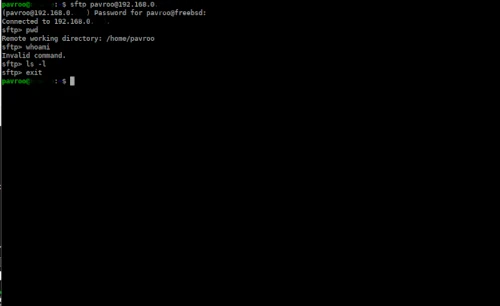
If the service is running properly, you can connect to the FTP server using any FTP client, such as Filezilla or gFTP, or using the console command:
sftp pawel@SERVER-IP
In the next installment of the “Your Own FreeBSD Server” series, we will continue configuring it.
