
Today’s Admin Tips tutorial is about the GNU wget application.
Wget is a network utility for downloading files from the Internet using HTTP(S) and FTP, the two most commonly used Internet protocols. It works without user interaction, so it will run in the background even after logging out. The program supports recursive downloading of authorized websites, as well as FTP sites – you can use wget to copy archives and websites, or to navigate the network like a web crawler.
GNU Wget has many features that make it easy to download large files or mirror entire websites or FTP sites, including:
– Can resume interrupted downloads using REST and RANGE
– Can use filename wildcards and recursive mirroring directories
– NLS-based message files for many different languages
– Optionally converts absolute links in downloaded documents to relative links, allowing downloaded documents to link locally
– Runs on most UNIX-like operating systems, as well as Microsoft Windows
– Supports HTTP proxies
– Supports HTTP cookies
– Supports persistent HTTP connections
– Runs unattended/in the background
– Uses local file timestamps to determine whether documents require redownloading during mirroring
– GNU Wget is distributed under the GNU General Public License.
The wget package is available on most Linux distributions; if it is not installed by default, you can install it via your package manager.
Downloading a File
During the download, wget displays a progress bar next to the file name, file size, download speed, and estimated time remaining. Once the download is complete, you can find the downloaded file in your current working directory.
wget https://cdn.kernel.org/pub/linux/kernel/v5.x/linux-5.18.15.tar.xz
Downloading a File and Saving with a Different Name
To save the downloaded file under a different name, add the -O option followed by the new name.
wget -O new-linux.tar.xz https://cdn.kernel.org/pub/linux/kernel/v5.x/linux-5.18.15.tar.xz
Downloading a File to a Different Directory
By default, wget will save the downloaded file in the current working directory. To save the file to a specific location, use the -P option.
wget -P /home/pavroo/iso https://sourceforge.net/projects/sparkylinux/files/xfce/sparkylinux-6.3-x86_64-xfce.iso
Limit Download Speed
To limit the download speed, use the –limit-rate option. By default, the speed is measured in bytes per second. Add ‘k’ for kilobytes, ‘m’ for megabytes, and ‘g’ for gigabytes.
The following command will download the ISO file and limit the download speed to 1 MB.
wget –limit-rate=1m https://sourceforge.net/projects/sparkylinux/files/xfce/sparkylinux-6.3-x86_64-xfce.iso
Resuming Downloads
You can resume downloads using the -c option. This is useful if your connection drops while downloading a large file, so instead of restarting the download from scratch, you can continue the previous one.
wget -c https://sourceforge.net/projects/sparkylinux/files/xfce/sparkylinux-6.3-x86_64-xfce.iso
Background Download
To download in the background, use the -b option.
wget -b https://sourceforge.net/projects/sparkylinux/files/xfce/sparkylinux-6.3-x86_64-xfce.iso
Downloading Multiple Files
If you want to download multiple files at once, use the -i option, followed by the path to a local or external file containing a list of URLs to download. Each URL must be on a separate line.
wget -i sparky-lista.txt
where the file sparky-lista.txt contains:
https://sourceforge.net/projects/sparkylinux/files/lxqt/sparkylinux-6.3-x86_64-lxqt.iso
https://sourceforge.net/projects/sparkylinux/files/xfce/sparkylinux-6.3-x86_64-xfce.iso
https://sourceforge.net/projects/sparkylinux/files/kde/sparkylinux-6.3-x86_64-kde.iso
FTP Download
To download a file from a password-protected FTP server, specify a username and password, e.g.:
wget –ftp-user=FTP_USERNAME –ftp-password=FTP_PASSWORD ftp://ftp.example.com/file.tar.xz
Bypassing Certificate Checking
If you want to download a file via HTTPS from a host with an invalid SSL certificate, use the –no-check-certificate option.
wget –no-check-certificate https://some-domain.pl
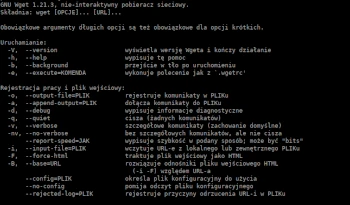
The wget program has many more options than those briefly presented.
You can access help with the following commands:
wget -h
man wget
