
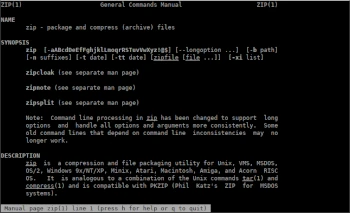
Another useful console program in the Admin Tips series is zip.
Zip is a file compression and packaging/archiving utility from Info-ZIP. ZIP is highly compatible with both PKWARE’s PKZIP and PKUNZIP utilities for MS-DOS, as well as Info-ZIP’s own UnZip. The main goal of the application was portability and functionality beyond MS-DOS.
Features not included in the PKWARE version include:
– creating zip files on a device
– extended VMS and OS/2 file attributes
– conversion between Unix, MS-DOS, and Macintosh text file formats
– runnability on most of your favorite operating systems.
Zip is useful for compressing a set of files for distribution, archiving files, and saving disk space by temporarily compressing unused files or directories. Zip stores one or more compressed files in a single ZIP archive, along with file information (name, path, date, last modification time, protection, and control information to verify file integrity). An entire directory structure can be packed into a ZIP archive with a single command.
Zip has a single compression method (deflation) and can also store files uncompressed. Zip automatically selects the better of the two for each file. Compression ratios of 2:1 to 3:1 are typical for text files.
Zip also supports encryption.
The default action is to add or replace entries in the zip file from a list, which may include a special name—to compress standard input. If zipfile and list are omitted, zip compresses stdin to stdout.
Options:
-f refresh: only changed files -u update: only changed or new files
-d remove entries in zip file -m move to zip file (remove operating system files)
-r recursion to directories -j junk (don’t save) directory names
-0 save only -l convert LF to CR LF (-ll CR LF to LF)
-1 compress faster -9 compress better
-q silent operation -v operation description/print version information
-c add single-line comments -z add comment to zip file
-@ read names from stdin -o create zip file as old as the latest entry
-x exclude the following names -i only include the following names
-F repair zip file (-FF try harder) -D don’t add directory entries
-A customize self-extracting exe file -Junk zip file prefix (unzipsfx)
-T zip file integrity test -X file attributes eXclude eXtra
-y stores symbolic links as a link instead of the file they reference
-e encrypt -n do not compress these suffixes
-h2 show more help
The ‘zip’ package is available in most Linux distributions and can be installed using a package manager.
Syntax
zip [options] filezip filelist
Examples
Creating a zip file
zip myfile.zip filename.txt
Removing a file from the archive
After creating a zip file, you can remove a file from the archive using the -d option.
zip –d filename.zip filename.txt
Updating an archive
The -u option updates a file in the zip archive. This option can be used to update a specified list of files or add new files to an existing zip file.
zip –u filename.zip filename.txt
Removing original files from the archive
The -m option removes the original files after compression.
zip –m filename.zip file.txt
For a complete list of available zip options, use the following commands:
zip -h
man zip
