
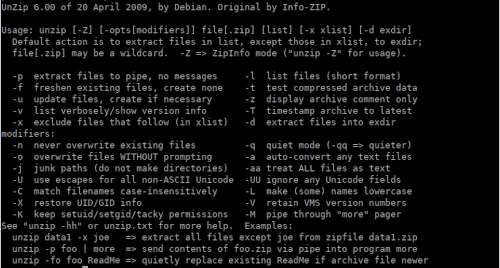
We’re starting a series of tips under the general title of Admin Tips. If you have any suggestions and/or topics for future tutorials of this type, please let us know in the comments. Here’s the first one: unzip
ZIP is one of the most commonly used archive file formats that supports lossless data compression. A ZIP file is a data container containing one or more compressed files or directories.
unzip will list, test, or extract files from a ZIP archive, commonly found on MS-DOS systems. The default behavior (without options) is to extract all files from the ZIP archive in the current directory (and subdirectories).
In this tutorial, I’ll show you how to unzip files on Linux systems from the command line using the unzip command.
Unzip isn’t installed by default on most Linux distributions, but you can easily install it using your distribution’s package manager.
Unzipping a ZIP file:
unzip package.zip
Unzipping a ZIP file to a different directory:
unzip package.zip -d /path/to/directory
Unzipping a password-protected ZIP file:
unzip -P password package.zip
or:
unzip package.zip
…
archive: package.zip
[package.zip] my-file.txt password:
Overwriting the existing unzipped file, if it exists:
unzip package.zip
…
Archive: latest.zip
replace wordpress/xmlrpc.php? [y]es, [n]o, [A]ll, [N]one, [r]ename:
Entering “y” will replace the unzipped file with the new one.
Unpacking an existing ZIP file without overwriting
In this case, use the -n option to skip unpacking the existing file:
unzip -n package.zip
Excluding selected files from a ZIP package. You can exclude directories and files when unpacking a ZIP file. Use the “-x” switch with the unpack command and the names of the excluded files separated by a space:
unzip package.zip -x my-file1 my-file2
Unpacking multiple ZIP files:
unzip ‘*.zip’
Checking the contents of a ZIP package without unpacking:
unzip -l package.zip
You can see all available options in the program’s manual page:
man unzip
