
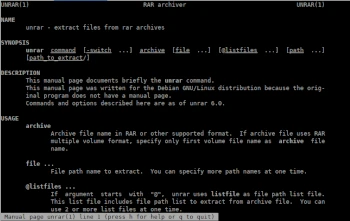
In the next tutorial in the Admin Tips series, we’ll take a closer look at the unrar application.
RAR is one of the most popular tools for creating and unpacking compressed archive files (.rar).
RAR is available free of charge on Windows operating systems for handling compressed files, but unfortunately, the rar utility is not installed by default on Linux systems.
To unpack RAR packages, you can use the ‘unrar’ application, which is available in the repositories of most Linux distributions.
Syntax:
unrar [-
– ] archive [files…] [path…]
Options:
e – Extract files to the current directory.
l – List archive contents.
p – Print file to standard output.
t – Test archive files.
v – Full archive list.
x – Extract files with full path.
Some switches:
-p
-p- Don’t ask for a password.
-r Recursive subdirectories.
-u Update files.
Examples
Unpacking a RAR archive
unrar e package.rar
Unpacking a RAR archive to a selected directory
unrar e package.rar /home/pavroo/Documents/
Unpacking a RAR archive with its original directory structure
To open/extract a RAR file with its original directory structure, add the ‘x’ option.
unrar x package.rar
Checking the contents of a RAR archive
unrar l package.rar
Checking a RAR archive
To test the integrity of an archive file, use the unrar t option. The following command will perform a full integrity check for each file and display the file status.
Unrar t package.rar
All available Unrar options can be found on the man page:
man unrar
