
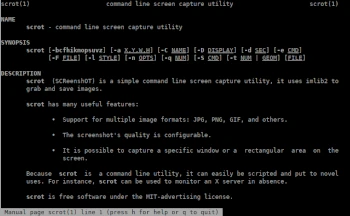
In the second post of the Admin Tips series, I’d like to introduce the console-based scrot program.
Scrot (SCReenshOT) is a simple command-line tool for capturing and saving screen content that uses imlib2. Various image formats are supported via imlib2’s dynamic screen saver modules.
Some of the program’s features include:
– support for multiple image formats (JPG, PNG, GIF, etc.);
– optimization of image quality obtained from screenshots;
– capturing a specific window or rectangular area of the screen using a switch.
Scrot can also be used to monitor desktops during the administrator’s absence and record unwanted activity.
Scrot is available on many Linux distributions and can be installed via the package manager.
Taking a Screenshot of a Single Window
The -u option tells the program to capture the currently active window. This is usually the terminal window you’re working in, but it might not be the one you want to save.
scrot -u file1
or with a graphic extension, e.g., png:
scrot -u file1.png
To grab a screenshot of another window on the desktop, use the -s option.
scrot -s file1.png
The -s option allows you to do one of two things:
– select an open window, or
– draw a rectangle around the window or part of it to capture it.
Delay
You can set a delay that gives you a little more time to select the window you want to capture. To do this, type the -d option.
scrot -u file1 -d 5
* where 5 represents 5 seconds.
Border
By default, scrot takes a screenshot without the window border. To add a border, use the -b option.
scrot -u file1 -b
Thumbnail
To capture a window and create a thumbnail of it, use the -t option. This can be useful when posting screenshots online.
scrot file1 -t
This option requires a numeric value, which is essentially a percentage of the original screenshot size, e.g., 50%.
scrot file1 -t 50
Countdown
The -c option creates a countdown in the terminal when using the -d option.
scrot file1 -d 5 -c
Image Quality
You can adjust the image quality of the screenshot on a scale of 1-100. A high value indicates a large size and low compression. The default value is 75, although the effect varies depending on the selected file format.
This function can be accessed using the -q option, but you must assign a numeric value between 1 and 100 to this option.
scrot file1 -q 10
Multiple monitors
If your machine has multiple displays connected, scrot allows you to capture and attach screenshots of all of them. This function can be accessed using the -m option.
scrot -m
Open an image in an external program
Using the -e option allows you to perform various operations on saved images, for example, open a screenshot in the gThumb graphical editor.
scrot file1.png -e ‘gthumb file1.png’
For help, use the following commands:
scrot -h
man scrot
