
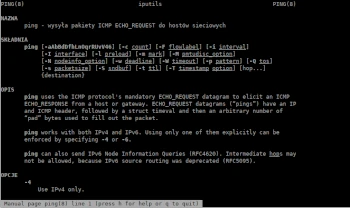
Today’s Admin Tips tutorial is dedicated to the ping program.
Ping is a tool for checking the reachability of network hosts. The ping command sends ICMP (Internet Control Message Protocol) ECHO_REQUEST packets to a host to check if it is reachable over the network. When a host receives the packet, it responds with an ICMP echo reply.
The ping command is one of the most commonly used tools for troubleshooting, testing, and diagnosing network connectivity issues.
The ping command can determine whether a remote destination IP address is active or inactive. You can also find the round-trip latency of communication with the destination and check for packet loss.
The ping program is available in most Linux distributions and can be installed through the ‘iputils’ package (‘iputils-ping’ or ‘inetutils-ping’).
Syntax
ping [OPTIONS] DESTINATION-HOST
Selected Options
-4 : Use IPv4 only
-6 : Use IPv6 only
-a : Audio ping
-b : Allows pings to broadcast addresses
-c count : Terminates after sending count ECHO_REQUEST packets.
-d : Sets the SO_DEBUG option on the socket in use. This socket option is not used by the Linux kernel
-D : Prints a timestamp (in Unix time + microseconds as in gettimeofday) before each line
-F flow-label : IPv6 only. Assigns and sets a 20-bit hexadecimal flow label in request/reply packets
-L count-packets : If count-packets is specified, ping sends that many packets without waiting for a response, then resumes normal operation. Only a user with root privileges can select more than 3 packets.
-m tag: Uses a tag to mark outgoing packets. This is useful in many kernel scenarios, such as using routing policies to select specific outgoing data processing.
-R: Ping program only. Records the route. Includes the RECORD_ROUTE option in the ECHO_REQUEST packet and displays the route buffer of returned packets.
-s packet-size: Specifies the number of bytes of data sent. The default value is 56, which translates to 64 ICMP bytes combined with the 8-byte ICMP header.
Examples
Ping with packet count
To determine the number of packets sent, use the ‘-c’ option.
ping -c 5 google.pl
PING google.pl (216.58.209.3) 56(84) bytes of data. 64 bytes from sof01s12-in-f3.1e100.net (216.58.209.3): icmp_seq=1 ttl=58 time=7.74 ms
64 bytes from sof01s12-in-f3.1e100.net (216.58.209.3): icmp_seq=2 ttl=58 time=6.94 ms
64 bytes from sof01s12-in-f3.1e100.net (216.58.209.3): icmp_seq=3 ttl=58 time=8.23 ms
64 bytes from sof01s12-in-f3.1e100.net (216.58.209.3): icmp_seq=4 ttl=58 time=9.07 ms
64 bytes from sof01s12-in-f3.1e100.net (216.58.209.3): icmp_seq=5 ttl=58 time=8.14 ms
— google.pl ping statistics —
5 packets transmitted, 5 received, 0% packet loss, time 4005 ms
rtt min/avg/max/mdev = 6.942/8.024/9.071/0.693 ms
Specify Internet Protocol
When you run the ping command, it will use IPv4 or IPv6, depending on your computer’s DNS settings. To force ping to use IPv4, pass the -4 option.
ping -4 google.pl
or
ping4 google.pl
To use IPv6, use the ‘-6’ option or the ‘ping6.
For more information, use the following commands:
man ping
ping -h
