
In today’s Admin Tips tutorial, we’ll explore the inxi application.
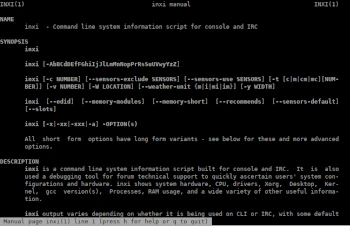
Inxi is a small script that provides system information and can display various hardware and software information to users in IRC chat or forums. It works with the /exec command in most IRC clients.
Some of the most important and useful features of inxi include:
– The ability to share system information in IRC chat rooms.
– The ability to create selective system information for specific categories. For example, you can display only information about audio hardware, hard drives, and so on.
– The ability to create colored terminal output for easier readability.
– The ability to create detailed information or summary information.
– Supports displaying information about distribution-specific package repositories.
– Supports displaying information about RAID and USB drives.
– It can display hardware temperature, fan speed, and other similar information by checking various sensors present on a Linux device. – Ability to hide sensitive and private information using command-line options. For example, you can override IP information using the “–filter” command-line switch to hide the real IP address.
– Supports the generation of highly detailed system and kernel information, especially useful for administrators.
– Can create and save output in various file formats, such as JSON and XML.
Inxi is available in the repositories of most Linux distributions, so it can be installed using the default package manager.
The following options provide specific information:
-A Show sound card information.
-C Show processor information, including the processor clock speed.
-D Show hard drive information, not just the model.
-F Show verbose output for inxi. Includes all uppercase letters, plus -s and -n.
-G Show graphics card information (card, type, resolution, glx processor, version, etc.).
-I General information: active processes, uptime, memory, IRC client, inxi version.
-l Show partition labels.
-n Show advanced network card information. Same as -Nn. Shows interface, speed, MAC address, status, etc.
-N Show network card information. With the -x option, displays the PCI bus ID and port number.
-p Show a complete list of hard drive partitions, including size, used and available space, file system, and file system type for each partition.
Before we start using it, we can run the following command to check all application dependencies and recommendations, various directories, and also display the packages we need to install to add support for a given feature.
inxi –recommends
Basic System Information
You can generate minimal system information with inxi by running the following command:
inxi
Coloring Output
Inxi creates color output by default. You can change the output color scheme by passing a number from 0 to 42 to the “-c” switch.
inxi -c 8
Full Output
To get detailed information, you will need to use the “–full” command-line switch.
inxi –full
Selected Information
Information about some specific categories can be obtained using additional options, such as “-C” and “-G” to generate information about CPUs and GPUs, respectively.
inxi -C -G
Filtering Information
To censor sensitive information, use the “–filter” switch. Sensitive information, such as serial numbers and IP addresses, will be marked with “
inxi -M –filter
Monitoring Processes by CPU and Memory Usage
The “-t” option, used with the “-c” (CPU) and/or “-m” (memory) options, displays the top 5 active processes consuming CPU and/or memory.
inxi -t c
inxi -t m
or
inxi -t cm
Number of Lines of Information
You can use the cm number (the number can be 1-20) to specify a number other than 5 to display active processes consuming CPU and memory.
inxi -t cm10
Network Information
The following command will show advanced information about your network card, including: interface, speed, MAC ID, status, IP addresses, etc.
inxi -Nni
CPU Temperature and Fan Speed
You can track the output of installed/configured hardware sensors using the “-s” option.
inxi -s
Weather Forecast
You can also check information for the current location using the “-w” option.
inxi -w
Repositories
Inxi can also provide information about the repositories used by your Linux distribution.
inxi -r
Writing information to a file
To write all output to a text file, use one of the following commands:
inxi –full > info.txt
inxi -full –output json –output-file “info.json”
inxi -full –output xml –output-file “info.xml”
More information about inxi you can get it with the commands:
inxi -h
man inxi
