
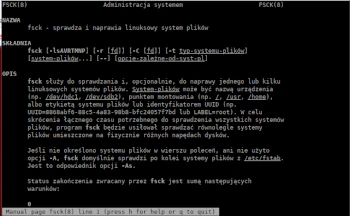
In today’s Admin Tips tutorial, we’ll explore fsck.
fsck is used to check and optionally repair one or more Linux filesystems. A filesystem can be a device name (e.g., /dev/hdc1, /dev/sdb2), a mount point (e.g., /, /usr, /home), a filesystem label or UUID (e.g., UUID=8868abf6-88c5-4a83-98b8-bfc24057f7bd or LABEL=root). To reduce the total time required to check all filesystems, fsck will attempt to check filesystems on different physical drives in parallel.
If no filesystem is specified on the command line or the -A option is used, fsck will by default check the filesystems in /etc/fstab sequentially. This is equivalent to the -As option.
Fsck completion status:
0 No errors
1 Filesystem errors corrected
2 System should be rebooted
4 Filesystem errors left unresolved
8 Operational error
16 Usage (syntax) error
32 Checking was interrupted by the user
128 Shared library error
OPTIONS
-l Creates an exclusive flock lock file
-r [fd] Displays specified statistics after each fsck completes.
-s Performs fsck operations serially.
-t filesystem-list Specifies the type(s) of filesystem(s) being checked.
-A Traverses the /etc/fstab file and attempts to check all filesystems in one pass.
-C [fd] Displays completion/progress indicators for filesystems that support them (currently only ext[234]).
-M Do not check mounted filesystems and return a zero exit status for them.
-N Do not perform the operation, only show what would be performed. -P If the -A option is enabled, checks the root filesystem in parallel with checking other filesystems.
-R When checking all filesystems with the -A option, skips the root filesystem (useful if it is already mounted read/write).
-T Does not show the title at startup.
-V Displays information in verbose mode, including any filesystem-specific commands being executed.
Syntax
fsck [options] [-t filesystem-type]
The ‘fsck’ utility is part of the ‘util-linux’ package and is available in most Linux distributions.
If you do not specify a filesystem, the system will analyze your /etc/fstab file for devices to scan. You will need to run the command as root or use it with sudo.
You can use the fdisk or df commands to list disks in Linux. This allows you to specify which device to check with fsck.
Do not run fsck on a mounted device; you must first unmount the target to avoid file corruption (here: /dev/sda6 is not mounted):
sudo fsck /dev/sda6
fsck from util-linux 2.38.1
e2fsck 1.46.6-rc1 (12-Sep-2022)
/dev/sda6: clean, 324868/1281120 files, 2220652/5120117 blocks
If the drive is mounted, fsck will return an error (here: /dev/sda2):
sudo fsck /dev/sda2
fsck from util-linux 2.38.1
e2fsck 1.46.6-rc1 (12-Sep-2022)
/dev/sda2 is mounted. e2fsck: Cannot continue, aborting.
Repairing a USB drive or other removable device
For our purposes, let’s assume you’ve already identified the problematic /dev/sdb device.
First, make sure the drive is unmounted:
sudo umount /dev/sdb
Then run fsck:
sudo fsck /dev/sdb
Check the output for errors. If none are displayed, check the exit code with ‘echo $?’
There are also several option flags we can add to enable automatic correction. However, these commands are not standardized, and you should verify the filesystem type and consult the documentation in that specific manual page.
However, you can generally use the -p option to allow fsck to automatically apply repairs.
sudo fsck -p /dev/sdb
Repairing the root filesystem
You cannot unmount the root partition while the system is active. If you suspect the root filesystem is corrupted, you’ll need to use a different tool. You can run fsck during boot, in rescue mode, or use a recovery CD.
Many Linux distributions automatically force fsck during startup after a certain number of failed boot attempts. If you prefer to take matters into your own hands, you can schedule the system to do it itself.
For more information about ‘fsck,’ use the following commands:
fsck -h
man fsck
