
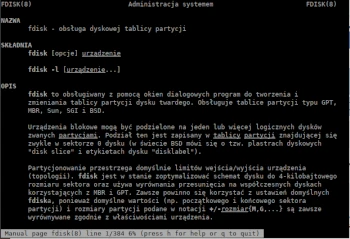
In the next post in the Admin Tips series, we’ll cover fdisk.
fdisk is a Linux command used to create and manipulate a disk’s partition table. It allows you to view, create, delete, change, resize, copy, and move partitions on a hard drive using a dialog interface.
fdisk allows you to create up to four primary partitions, and the number of logical partitions depends on the size of the hard drive being used. fdisk allows the user to:
– create space for new partitions
– organize space for new drives
– reorganize old drives
– copy or move data to new drives (partitions).
fdisk is part of the util-linux package.
Syntax:
Changing the partition table
fdisk [options] DISK
Options:
-b, –sector-size
-B, –protect-boot : Don’t strip bootbits when creating the label
-c, –compatibility[=
-L, –color[=
-l, –list : List partitions and exit
-x, –list-details : Like –list, but with more details
-n, –noauto-pt : Don’t create a default partition table on empty devices
-o, –output : Columns to output
-t, –type
-u, –units[=
-s, –getsz : Specify the device size in 512b sectors [OBSOLETE]
–bytes : Print the size in bytes, rather than in a human-readable format
–lock[=
-w, –wipe
-W, –wipe-partitions
-C, –cylinders
-H, –heads
-S, –sectors
Examples
List all disk partitions
The following command lists the partitions on the system and displays their /dev names. For example, /dev/sda, /dev/sdb, or /dev/sdc.
sudo fdisk -l
View partition on a specific disk
The following command displays all disk partitions on the /dev/sda device.
sudo fdisk -l /dev/sda
View all fdisk commands
To see all the commands available with the fdisk command, you can use the /dev/sda partition with the fdisk command.
sudo fdisk /dev/sda
This will prompt you for a command. Type m to see all the operations that can be performed on /dev/sda.
Create a Hard Disk Partition
Navigate to the hard disk partition, which is /dev/sda.
sudo fdisk /dev/sda
Now you need to type ‘n’ to create a new partition, then type ‘p’ to create a primary partition and ‘e’ to create an extended or logical partition, depending on the partition type you want to create. Use ‘w’ to save changes.
Delete a Hard Disk Partition
To delete a hard disk partition and free up the space occupied by it, for example, /dev/sdb,
sudo fdisk /dev/sda
and then use ‘d’ to access the delete partition menu. You will be prompted for the number of the partition you want to delete (enter the number). Use ‘w’ to save changes.
How to view partition size
sudo fdisk -s /dev/sda
For more information about fdisk, use the following commands:
sudo fdisk –help
man fdisk
