
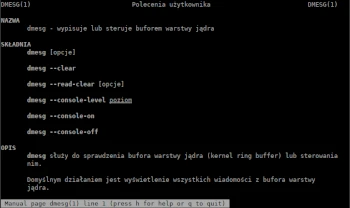
In the twelfth installment of the Admin Tips series, we’ll examine the dmesg program.
dmesg (diagnostic message) is a Unix system command that displays the kernel ring buffer. It allows, among other things, to display system startup messages. dmesg is used to check or control the kernel ring buffer. The default action is to display all messages from the kernel ring buffer.
Commonly speaking, the dmesg command allows you to peer into the hidden world of Linux startup processes.
The dmesg program is part of the ‘util-linux’ utility package and should be installed by default on most Linux and BSD distributions.
Syntax
dmesg OPTIONS
Options
-C, –clear Clears the buffer’s contents.
-c, –read-clear Clears the buffer’s contents after it is first displayed.
-D, –console-off Disables the display of messages in the console.
-d, –show-delta Displays the time stamp and the time difference between messages. If this option is used with –notime, only the time difference is printed.
-E, –console-on Enables the display of messages on the console.
-e, –reltime Displays the local time and time difference in a human-readable format. Note that conversion to local time may be inaccurate.
-F, –file file Reads syslog messages from the specified file. Note that -F does not support messages in the kmsg format. Only the old syslog format is supported.
-f, –facility list Limits output to the specified (comma-separated) list of issues.
-H, –human Enables human-readable display. See also –color, –reltime, and –nopager.
-J, –json Use JSON output format. The time output format is in “sec.usec” format only; the log priority level is not decoded by default (use –decode to split into facility and priority). The other options to control the output format or time format are silently ignored.
-k, –kernel Displays kernel messages.
-L, –color[=when] Colorizes the output. The optional when argument can be auto, never, or always. If no when argument is specified, the default is auto. Colors can be disabled; the current built-in default setting will be shown with the –help option.
-l, –level list Limits output to the specified (comma-separated) list of levels.
-n, –console-level level Sets the level at which console messages are displayed. Substitute the level number or shortened level name for the level.
-n causes dmesg to neither display nor clear the kernel layer buffer. -P, –nopager Does not page output, which is enabled by default for the –human output option.
-p, –force-prefix Adds an element, level, or timestamp to each line of a multiline message.
-r, –raw Displays the raw message buffer; i.e., does not trim log level prefixes; all non-printable characters are still escaped.
-S, –syslog Forces dmesg to use the syslog(2) kernel interface to read kernel messages.
-s, –buffer-size size Uses a buffer of the specified size to query the kernel buffer. The default is 16392 (the default kernel syslog buffer size was initially 4096, 8192 since version 1.3.54, and 16384 since version 2.1.113). If the user has set a kernel buffer larger than the default, this option can be used to view the entire buffer. -T, –ctime Prints timestamps in human-readable format.
–time-format format Prints timestamps in the specified format, which can be ctime, reltime, delta, or iso.
-u, –userspace Prints messages from userspace.
-w, –follow Waits for new messages. This feature is only supported on systems with a readable /dev/kmsg.
-W, –follow-new Waits and displays only new messages.
-x, –decode Decodes facility and priority numbers into human-readable prefixes.
Examples
The dmesg command allows you to view messages stored in the ring buffer. By default, you must use sudo to use dmesg.
sudo dmesg
All messages in the buffer are displayed in a terminal window. The number of messages is usually large; you can also use the ‘less’ command.
sudo dmesg | less
Now we can scroll through the messages for interesting information.
Color
By default, dmesg will likely be configured to generate colored output. If not, you can tell dmesg to colorize the output with the -L (color) option.
sudo dmesg -L
or
sudo dmesg –color=always
Human Timestamps
By default, dmesg uses the seconds and nanoseconds since kernel startup notation. To render this in a more human-friendly format, use the -H (human) option.
sudo dmesg -H
Human-Readable Timestamps
If you don’t need nanosecond precision, but need timestamps that are easier to read than the default, use the -T option.
sudo dmesg -T
Get the last ten messages
Use tail command to retrieve the last ten messages from the kernel ring buffer. Of course, you can retrieve any number of messages. Ten is just our example.
sudo dmesg | tail -10
Searching for specific phrases
Use dmesg with grep to search for specific strings or patterns, using the -i option to ignore case insensitive matches. Our results will include “usb” and “USB” and any other combinations of lowercase and uppercase letters.
sudo dmesg | grep -i usb
You can get all the information about the dmesg program with the following commands:
dmesg -h
man dmesg
