
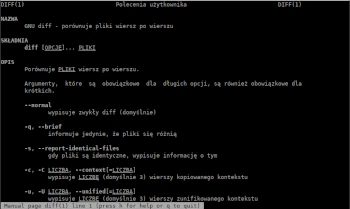
In today’s Admin Tips post, we’ll be discussing the GNU diff program.
GNU diff (from difference) is used to display file differences by comparing files line by line. The ‘diff’ program tells us which lines in one file need to be changed to make both files identical. The program tells us which lines in one file need to be changed to make both files identical. It’s important to remember that diff uses some special symbols and instructions required to make two files identical. It contains instructions on how to change the first file to match the second file.
The ‘diff’ program is part of the ‘diffutils’ package and is available in most Linux distributions.
Syntax
diff [OPTIONS]… FILES
Options
–normal prints a normal diff (default)
-q, –brief only reports that the files are different
-s, –report-identical-files reports that the files are identical
-c, -C NUMBER, –context[=NUMBER] prints NUMBER (default 3) lines of copied context
-u, -U NUMBER, –unified[=NUMBER] prints NUMBER (default 3) lines of unified context
-e, –ed prints eda notation
-n, –rcs prints the difference in RCS diff format
-y, –side-by-side prints the result in two columns
-W, –width=NUMBER prints at most NUMBER (default 130) columns
–left-column prints only the left column of the shared context lines
–suppress-common-lines do not print common lines
-p, –show-c-function shows the C function where each change is found
-F, –show-function-line=REGEXPR shows the last line matching REGEXPR
–label LABEL use LABEL instead of filename and timestamp (can be repeated)
-t, –expand-tabs replace tabs with spaces in printed output
-T, –initial-tab creates formatting by adding a leading tab character
–tabsize=NUMBER tab size is NUMBER (default 8) columns
–suppress-blank-empty do not print spaces or tabs before empty lines
-l, –paginate process output through pr, numbering pages
-r, –recursive compare found subdirectories recursively
–no-dereference without following links symbolic
-N, –new-file treats missing files as empty
–unidirectional-new-file treats missing starting files as empty
–ignore-file-name-case ignores case when comparing file names
–no-ignore-file-name-case does not ignore case when comparing file names
-x, –exclude=PATTERN skips files matching PATTERN
-X, –exclude-from=FILE skips files matching pattern in FILE
-S, –starting-file=FILE starts from FILE when comparing directories
–from-file=FILE1 compares FILE1 to all elements of the set (operands); FILE1 can be a directory
–to-file=FILE2 compares all elements of the set (operands) to FILE2; FILE2 can be a directory
-i, –ignore-case ignores case in file contents
-E, –ignore-tab-expansion
-Z, –ignore-trailing-space ignores whitespace at the end of a line
-b, –ignore-space-change ignores changes in the number of whitespace characters
-w, –ignore-all-space ignores all whitespace characters
-B, –ignore-blank-lines ignores changes in the number of blank lines
-I, –ignore-matching-lines=REG ignores changes in lines matching REG
-a, –text treats all files as text
–strip-trailing-cr strips the trailing carriage return (CR) from the output
-D, –ifdef=NAME outputs concatenated files with “#ifdef NAME” differences
Examples
Comparing Two Files
diff file1 file2
Context Mode
The -c (context) option displays Differences in Context Mode
diff -c file1 file2
Unified Mode
The -u (unified) option displays differences in unified mode. It is similar to context mode, but it either doesn’t display any unnecessary information or shows the information in a concise form.
diff -u file1 file2
Suppress Case
By default, this command is case-sensitive. To make this command case-insensitive, use the -i option.
diff -i file1 file2
For more information about diff, use the following commands:
diff –help
man diff
