
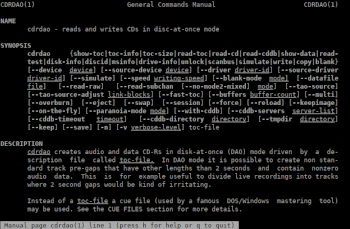
Another console-based program in the Admin Tips series is cdrdao.
cdrdao burns data or audio tracks to CD-R discs using Disk-At-Once (DAO) mode, based on a text description of the CD’s contents.
Disk-At-Once recording writes the entire disc—that is, the lead-in area, one or more tracks, and the lead-out—in one step. The frequently used Track-At-Once (TAO) mode writes tracks independently, requiring block associations between two tracks. A good example of this method is copying a multi-track CD, such as most audio CDs.
cdrdao can handle the bin/cue format, often used for VCDs or discs with subchannel data.
The cdrdao package is available for most Linux distributions.
The package also includes:
toc2cddb – converts a Cdrdao TOC file to a cddb file and displays the information.
toc2cue – converts TOC to CUE format for audio CDs.
Syntax:
cdrdao COMMAND [options] [toc-file]
COMMAND:
show-toc – displays the toc file and exits
toc-info – displays a short summary of the toc file
toc-size – displays the total number of blocks for the toc
read-toc – creates a toc file from an audio CD
read-cd – creates a toc file and rips audio data from the CD
read-cddb – contacts a CDDB server and adds the data as CD-TEXT to the toc file
show-data – displays audio data and exits
read-test – reads all audio files and exits
disk-info – displays information about the inserted media
discid – displays CDDB information
msinfo – displays information about multiple sessions; the output is script-friendly
drive-info – displays disk information
unlock – unlocks the disk after a failed write
blank – displays a blank CD-RW
scanbus – scans for devices
simulate – shortcut to ‘write –simulate’
write – writes a CD
copy – copies a CD
Options (selected):
–device [prot:]bus,id,lun : Sets the SCSI address of the CD writer as a bus/id/lun triplet, e.g., “0,2,0” for logical unit 0 of SCSI device ID 2 on bus 0.
–source-device [prot:]bus,id,lun : As above, but used in the copy command to specify the source device.
–driver driver-id: option-flags : Force the use of a specific driver instead of the automatically determined driver.
–source-driver driver-id: option-flags : As above, but used for the device specified with the –source-device option.
–speed value : Set the write speed to a value. Defaults to the highest possible speed.
–blank-mode mode : Sets the blanking mode.
–datafil file : Used for read-toc, read-cd, and copy.
–read-raw : Used only for the read-cd and read-toc commands.
–read-subchan mode : Used only for the read-cd, read-toc, and copy commands.
–no-mode2-mixed : Used only for the read-cd and read-toc commands.
–tao-source : This option indicates to the read-toc and read-cd commands that the source CD was written in TAO mode.
–multi : If this option is specified, the session will not be closed after successfully writing audio data.
–overburn : By default, cdrdao will not allow more data to be written to the media than the current media specifies.
–eject : Eject the CD-R after writing or simulating a write.
–save : Saves some of the current options to the “$HOME/.cdrdao” settings file and exits.
cdrdao needs to know where to find the drive, and the following command will provide the required information:
sudo cdrdao scanbus
Example output would be:
/dev/sr0
Duplicating an audio CD can be done in two steps. The first step is ripping the audio CD to your computer and generating a table of contents (TOC):
sudo cdrdao read-cd –source-device /dev/sr0 –driver generic-mmc –paranoia-mode 3 audiocd.toc
This gives you the ability to change the TOC if needed. Now, a second command is required to burn the generated data.bin and audiocd.toc files to a blank, writable CD:
sudo cdrdao write –device /dev/sr0 –driver generic-mmc –buffers 128 –speed 8 audiocd.toc
For more information about cdrdao, use the following commands:
man cdrdao
cdrdao –help
